
Lending & reservations
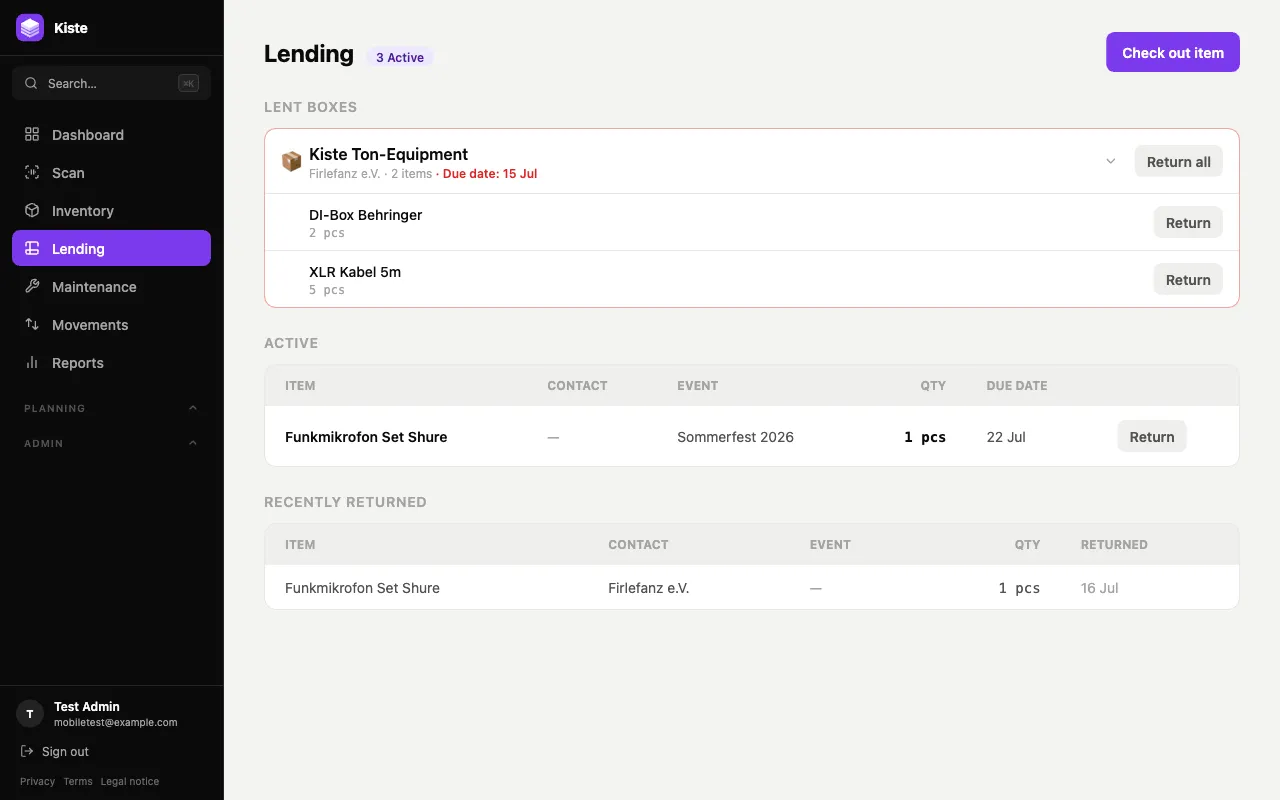
Checking out an item
Section titled “Checking out an item”Go to Lending → Check out item, pick an item, a quantity, an optional due date, and a borrower — a contact (an external person or organisation), an event, or both. The item’s stock is reduced and its status becomes Lent.
Returning items
Section titled “Returning items”From the Lending page, click Return on any active loan. You’ll be asked whether the item came back in good condition or damaged — damaged returns let you add a note, which is saved on the item’s history.
Loans made by scanning a whole box (see below) are grouped together under Lent boxes, with a Return all button to bring the whole box back in one click, or return items from it one at a time.
Bulk lending with Scan
Section titled “Bulk lending with Scan”For lending or returning several items in one go — for example when a contact picks up or drops off a whole batch of gear — use the Scan page’s Lend / Return mode instead of checking items out one at a time here. See the Scanning guide for the full walkthrough, including lending an entire box in a single scan.
Reservations
Section titled “Reservations”Use Reservations to reserve an item and quantity for a future date range — useful for planning ahead when you know something will be needed later, without reducing current stock until it’s actually checked out.
Overdue loans
Section titled “Overdue loans”Loans past their due date show up as overdue on the dashboard and on the Lending page, so you can follow up before gear goes missing for good.