
Labels & QR codes
Every item, location, and event in Kiste has a scannable QR code — go to Labels to browse, print, or download them.
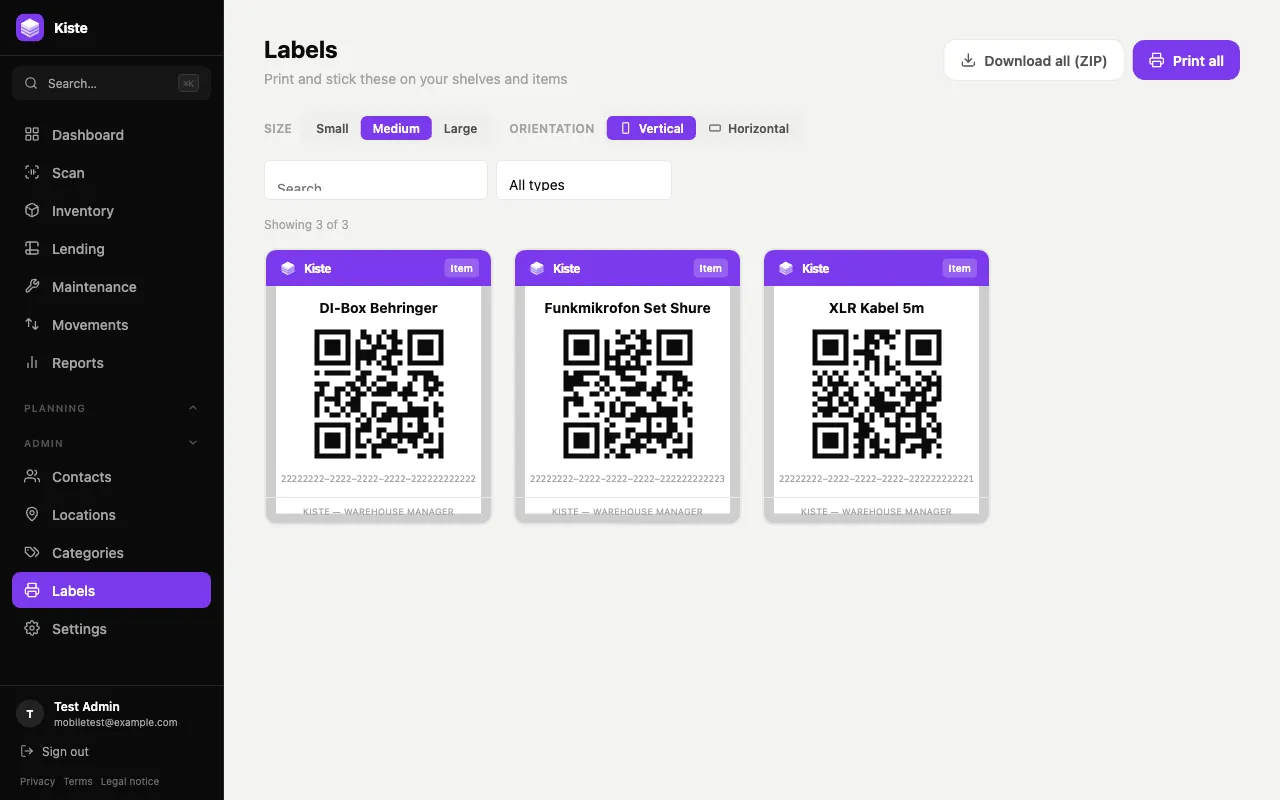
Size and orientation
Section titled “Size and orientation”Before printing or downloading, choose:
- Size — Small, Medium, or Large. QR codes never shrink below a scannable minimum, even at the smallest size, so labels stay reliable on tiny items.
- Orientation — Vertical (the default card-style label) or Horizontal (a wide strip with the QR code on the left and the name/barcode on the right) — better suited to narrow spaces like a shelf edge or a cable tie.
Both settings apply to single downloads, the ZIP export, and printing, and the print layout’s column count adjusts automatically so pages aren’t cramped or wastefully sparse.
Downloading a single label
Section titled “Downloading a single label”Click any label’s card to download it as a PNG — useful for printing one-off replacements or pasting into another document.
Printing or exporting in bulk
Section titled “Printing or exporting in bulk”- Print all renders every label (respecting your chosen size/orientation) and opens your browser’s print dialog.
- Download all (ZIP) packages every label as an individual print-ready PDF, organised into folders by type (items, sites, shelves, boxes), inside one ZIP file.
- Use the search box and type filter to narrow down to a subset first, then Print filtered / Download filtered (ZIP) to only export those.
What’s on a label
Section titled “What’s on a label”Every label carries the Kiste logo, the item/location/event name, its type, the QR code itself, and the underlying barcode value as text — so it’s still identifiable even if the QR code becomes damaged or hard to scan.